Hardware Security Keys in the Rust Project
Overview
Hardware security keys in Rust Infrastructure
Hardware security keys improve security by providing unphishable protection for sensitive systems and infrastructure. The Rust infrastructure team officially supports hardware security keys in partnership with Yubico Secure it Forward program.
Currently, the members of the following teams are eligible for this grant:
infracrates.iodocs.rsreleasetriagebotbors
The Rust Foundation provides YubiKeys to Rust Project members who need access to critical infrastructure systems. If you are eligible for such a grant and would like to get the recommended YubiKeys for free, get in touch with the T-infra in Zulip.
YubiKeys support in the Rust infrastructure
Supported models
The Rust infrastructure team has validated the Yubico Series 5 USB/NFC models products and officially supports the Yubico Series 5 keys for any issues a Project member might have.
Supported firmware versions
Based on existing security advisories, only YubiKeys with firmware
version v5.7.4 or newer are allowed. You can use either the ykman
CLI or Yubico Authenticator to check the current firmware version of a YubiKey.
Recommended first steps
There are at least two official open-source tools provided by Yubico tools that help setting up an Yubikey:
- Yubico Authenticator (sources : Desktop and Android | iOS):
- The Desktop app is pretty capable of handling most of the tasks.
- You can download the Mobile App directly on Google Play or Apple App Store.
- Yubico Manager CLI (sources: yubikey-manager): for advanced use cases.
As a good first step, the Rust infrastructure team recommends using the Yubico Authenticator Desktop app to change the default values for:
For those who prefer the CLI, uvx might be an alternative to run the ykman
Python utility without installing it globally in your system or managing Python
installations. You can refer to the ykman online documentation to learn more
about subcommands.
PIN and PUK can also be changed using GnuPG, see the Dr Duh guide
uvx --from yubikey-manager ykman --help
or alternatively
alias ykman="uvx --from yubikey-manager ykman"
ykman --help
Multifactor authentication with webauthn
Yubico implements the FIDO2 standard in all its products, and therefore, setting up YubiKeys as a multi-factor authenticator device should just work without any additional configuration for any web systems that support second authentication factors on top of webauthn.
As an example, to set up a YubiKey to MFA in Github, you can refer to these official steps. At some point, you’ll be prompted with the following dialog:
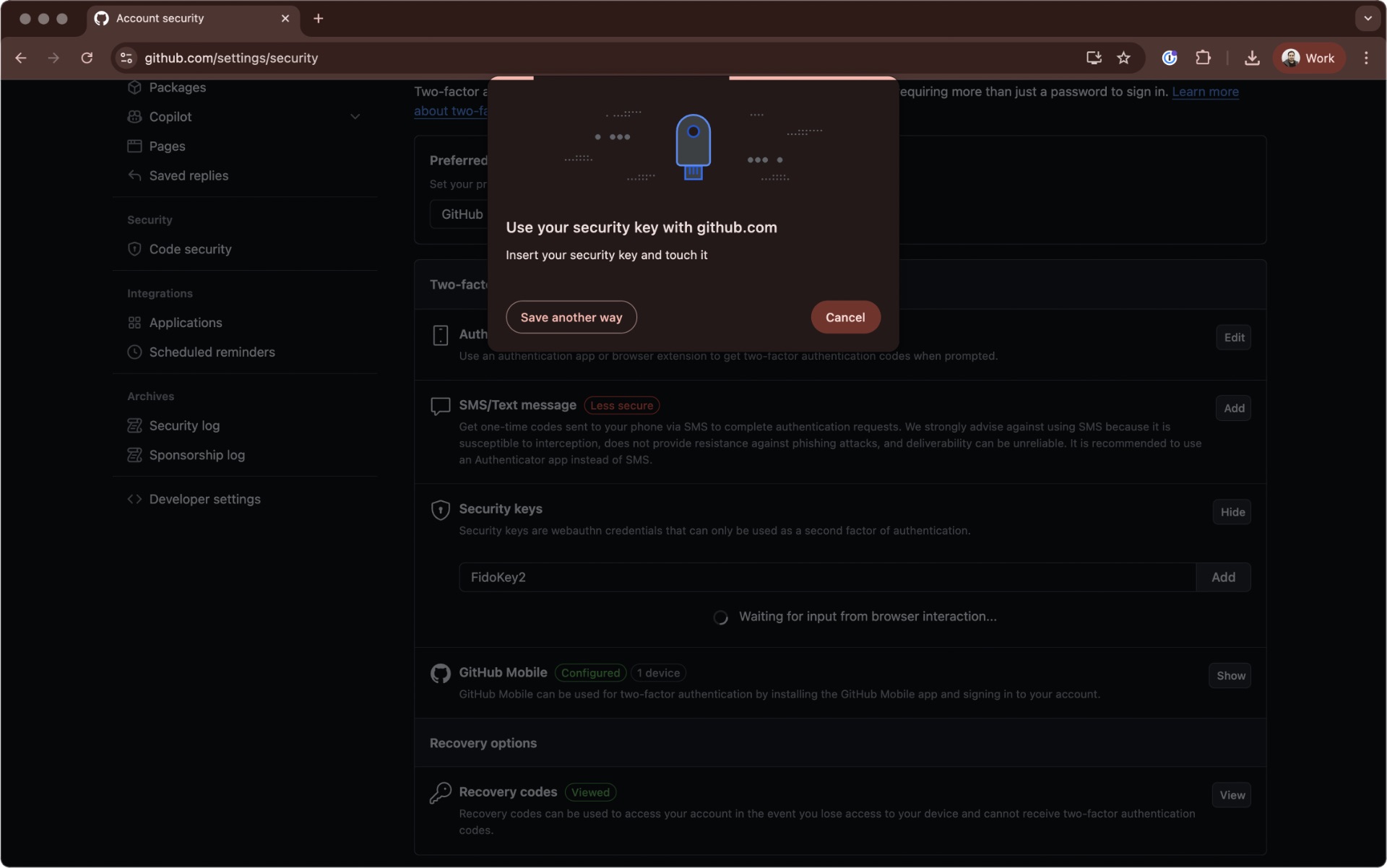
The setup flow will vary depending on the system, and might also change according to web browser extensions you have installed (e.g. 1password, which offers itself as an option during such a setup) but in general you should mind the security key web browser dialog.
This step triggers the check for the human presence against the hardware key. Touch your YubiKey to confirm the authentication.
Our MFA policy mandates using this option for all compatible critical Rust Infrastructure systems.
Hardware-backed multi factor authentication
For systems that require multi-factor authentication but only support TOTP codes as a secure MFA method, YubiKeys can still work as an alternative to existing solutions like Google Authenticator. In this case, you can use the Yubico Authenticator app to set up hardware-backed TOTP code generation.
This option provides a way to have working TOTP codes in both a mobile phone and a desktop system without relying on third-party cloud systems, but also has the con of coupling TOTP code generation with a physical device: similarly to using an offline-only TOTP authenticator app, losing the Yubikey means losing access to TOTP codes, which requires additional diligence regarding backing up recovery codes.
Note that setting up hardware-backed TOTP codes is optional for Rust Project members.
Hardware-backed SSH keys
For those who want additional security for SSH authentication, YubiKeys offer different options for hardware-backed SSH key pairs. Having your SSH keys hardware-backed makes private SSH keys effortlessly portable across different machines.
For example, if you want to use a Yubikey-backed SSH key with your Github account, OpenSSH built-in support for FIDO2 authentication may be the easiest way to get started.
The setup will differ depending on your operating system, but keep in mind that you may also need to tweak your Git configuration to make sure that operations like commit signing continue to work as expected. In particular, we recommend not prompting the passkey PIN for every Git operation, since it might be counterproductive.
As an example, this command will define a new resident SSH key through FIDO2 and won’t prompt your passkey everytime, nor will it require touching the hardware key for Git operations.
ssh-keygen -t ed25519-sk \
  -O resident \
  -O application=ssh:git \
  -C "me@email.com"
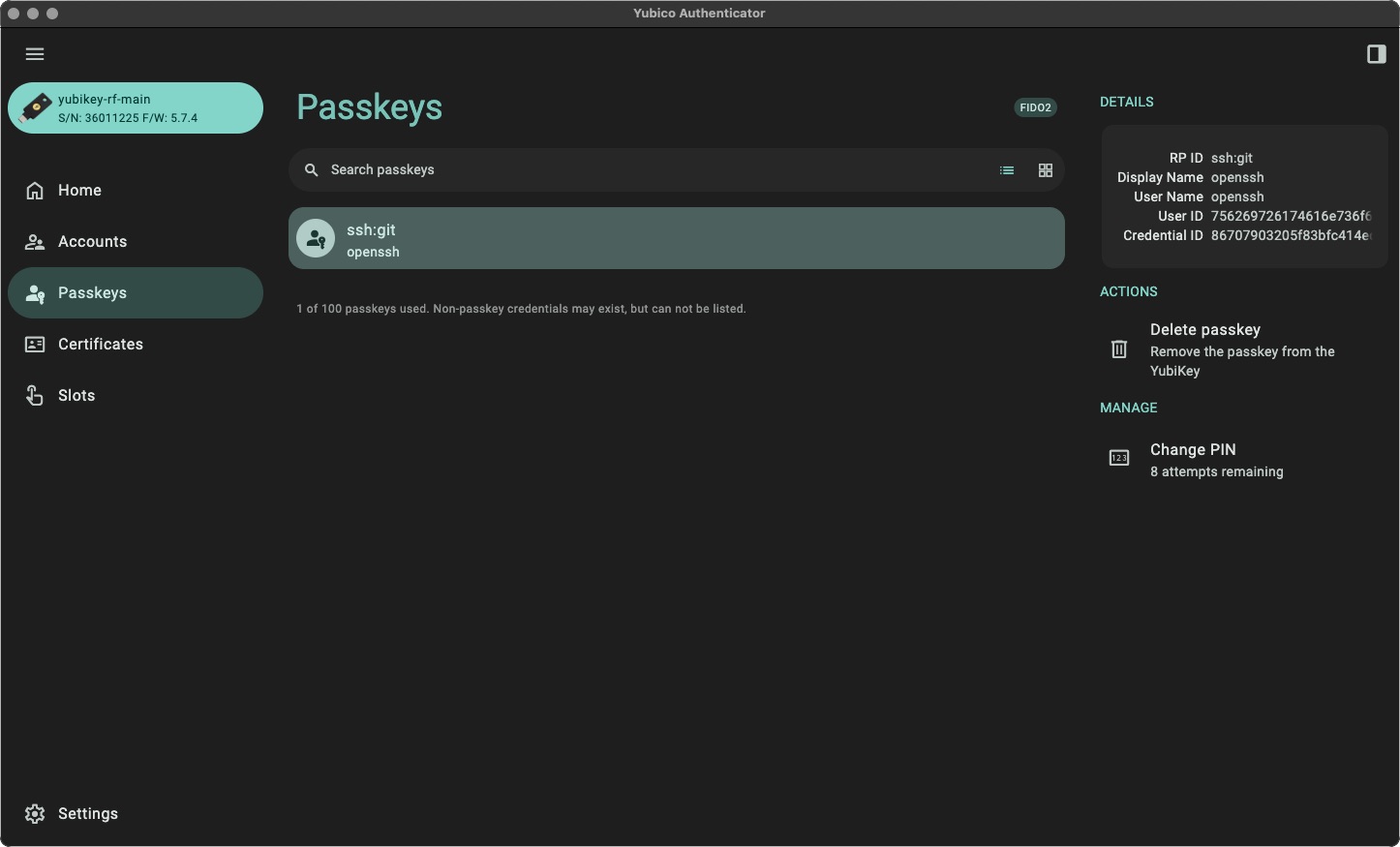
Hardware-backed SSH keys are optional for now, but might be required for certain administrative infrastructure tasks in the future. You can check which resident SSH keys are available in your YubiKey either with CLI or Yubico Authenticator app.
$ ykman fido credentials list
Enter your PIN:
Credential ID  RP ID    Username  Display name
86707903...    ssh:git  openssh   openssh
PIV-backed keys and attestations
YubiKeys are compatible with Personal Identity Verification (PIV) for smart cards, which allows using them for encryption and signing operations on top of this particular standard.
Conventions and requirements
Before using PIV, you must change the default PIN and PUK. Use ykman or
the Yubico Authenticator app. With ykman, run:
ykman piv access change-pin
ykman piv access change-puk
Yubico Authenticator can create and manage PIV keys, but some security
options are available only in ykman.
Generating PIV-backed keys
When creating PIV-backed keys, follow these security requirements:
- Prefer the
ECCP256encryption algorithm. - Require PIN confirmation at least
oncewhen accessing a PIV slot. - Require human interaction against the YubiKey (touching it).
To generate a key and store it into the slot 9a (authentication use cases)
with recommended security defaults, run:
ykman piv keys generate 9a - --algorithm ECCP256 --pin-policy once --touch-policy always
Similarly, to generate a key and store it into the slot 9c
(signing use cases):
ykman piv keys generate 9c - --algorithm ECCP256 --pin-policy once --touch-policy always
Exporting public keys and certificates from PIV slots
After generating keys, you can export the public keys related to the PIV slots and store them externally:
ykman piv keys export 9a pubkey-9a.pem
ykman piv keys export 9c pubkey-9c.pem
These public keys are also required to generate self-signed X.509
certificates. For example, to generate a certificate associated with
the 9a PIV slot, run:
ykman piv certificates generate 9a pubkey-9a.pem --subject "CN=<your name>" --valid-days 2000
Note that:
subjectshould be an RFC-4514 stringvalid-dayssets the certificate lifetime (default is 365 days)
Exporting attestations and sharing them through team DB
In addition to self-signed certificates, you can also generate an attestation certificate for a PIV-backed key pair.
ykman piv keys attest 9a attestation-9a.pem
ykman piv keys attest 9c attestation-9c.pem
To allow verification for these attestations, you must also export Yubico’s intermediate attestation certificate pre-loaded in the YubiKey and signed with Yubico’s root attestation CA:
ykman piv certificates export f9 f9-intermediate.pem
To add these files to the team DB, follow the following steps:
- Create a directory under team/hardware-keys named after your YubiKey’s serial number.
- Add the
attestation-9*.pemfiles for the PIV slots you configured. - Add the YubiKey’s
f9-intermediate.pemattestation file. - Link to these files from
team/people/<your-user>.toml.
See the TOML schema for details.
FAQ
Which services should I use 2FA with my YubiKey?
Please check our MFA policy.
How do I handle my preferred cloud CLI authentication with my YubiKey?
For Gcloud CLI, the web-based authentication flow will automatically prompt your 2FA method of choice, and after that, no additional steps are required. You just need to configure it as your preferred MFA method in your Google account.
For AWS CLI, you should stick with AWS SSO user sessions rather than IAM user sessions when setting up your CLI configuration. This flow will prompt your 2FA method when signing with your web browser of choice.
The Rust infrastructure provides SSO access to Project members through our AWS Identity Center configuration. You still need to configure your YubiKey as your MFA method of choice in your AWS user account, though.